Product cards
Steps
In the theme editor ( Customize ), click Theme settings
Locate Product
Make necessary changes
Save
General settings#
Product actions#
Style: There are 3 card styles to choose from: Standard, Card and Morden.
Standard style · Card style · Morden style
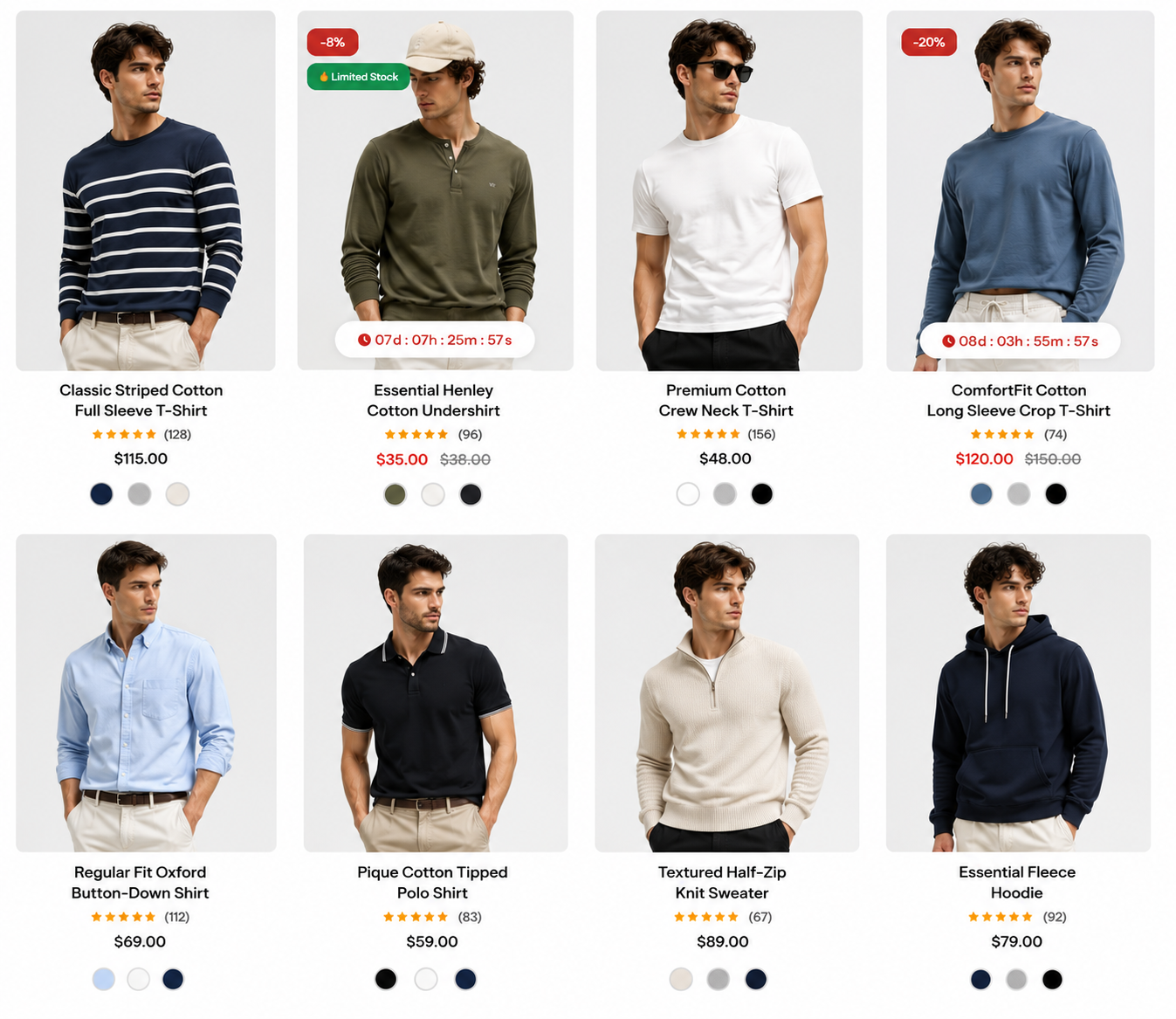
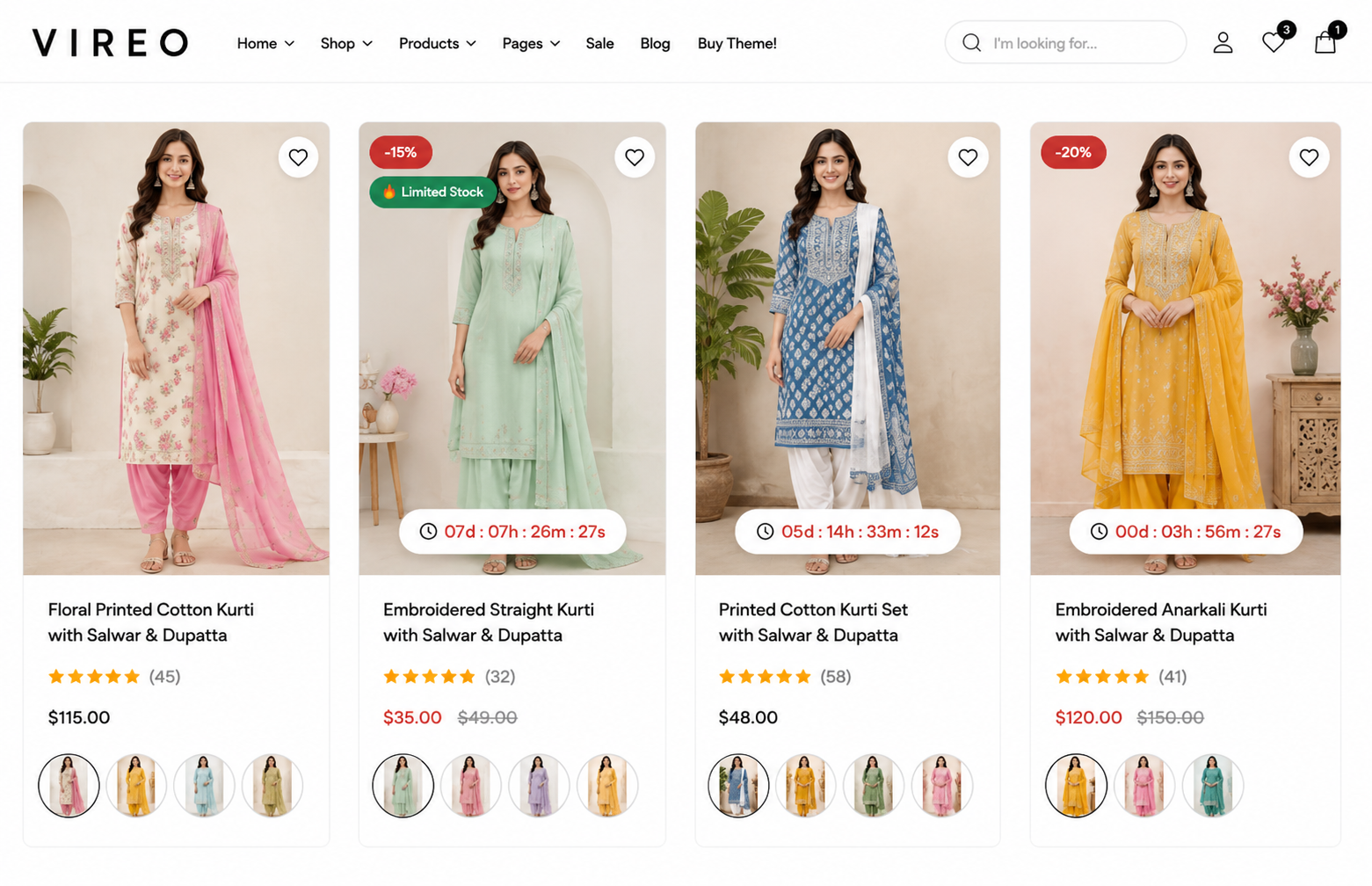
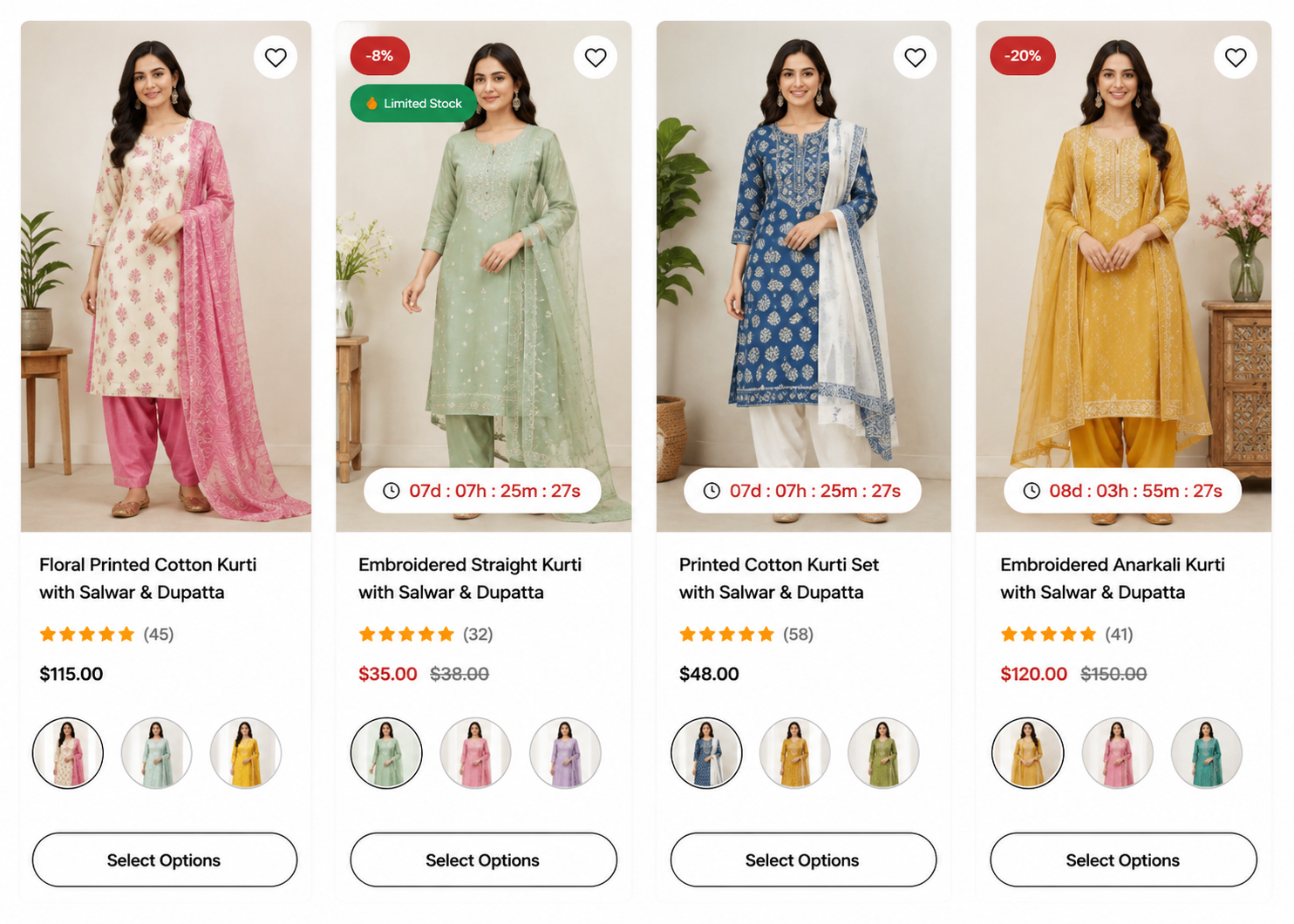
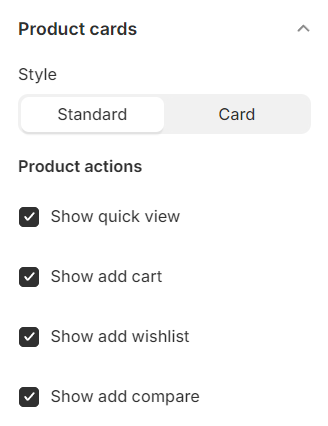
There are several options for you to decide what to show inside products layout:
Show button "Quick view": enable quick view button when hover a product
Show button "Add to cart": enable add to cart button when hover a product
Show button "Add to wishlist": enable add to wishlist button when hover a product
Show button "Add to compare": enable add to compare button when hover a product
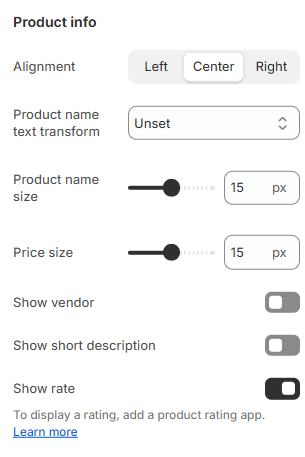
Product info#
Alignment: Specify the alignment for product info (left, center, right).
Product name text transform: Define the transformation for product names (unset, capitalize, uppercase).
Product name size: Set the font size for product names.
Show vendor: Determine whether to display the vendor information.
Show short description: Choose whether to display the short description.
Show rate: Decide whether to display rating stars.
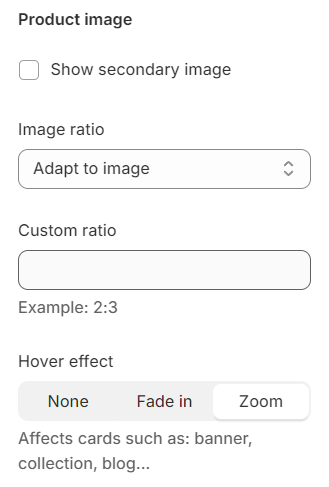
Product image#
Show secondary image: Display the second image upon hovering.
Image ratio: Specify the ratio for the images.
Custom ratio: Define a custom ratio instead of using the default image ratio.
Hover effect: Choose the effect for the hover image.
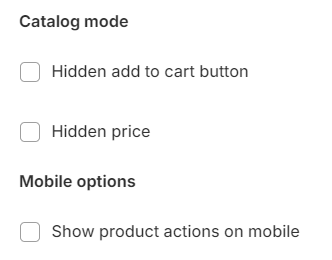
Catalog mode and Mobile options#
Hidden add to cart button: Conceal the add to cart button.
Hidden price: Suppress the display of the price.
Show product actions on mobile: Choose whether to display product actions on mobile devices.
Last updated 9 months ago