Icon box
This section helps you add Icon, Header, Subheader, and Text in many boxes . You can use this section for many different purposes, especially for a more flexible Free Shipping section. Let's stick to this article to figure it out.

Steps:
In the theme editor ( Customize ), click Add section
Locate Image box
Save
Section settings#
Section header and General#
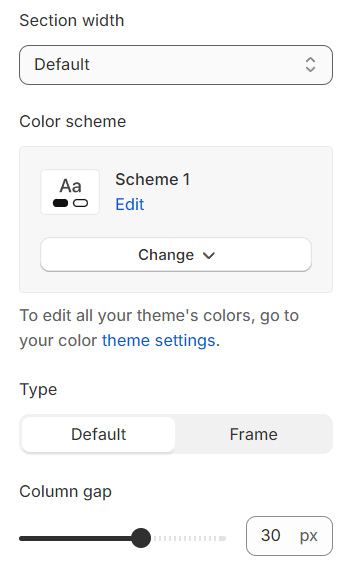
Section width: You can choose among Container, Wrapped container, Full width for the banner layout.
Color scheme: Set text color and background color with preset scheme.
Type : You can choose the default layout for the blocks or add borders to them.
Column gap: Adjust the spacing between products to ensure a clean and organized appearance, enhancing the shopping experience.
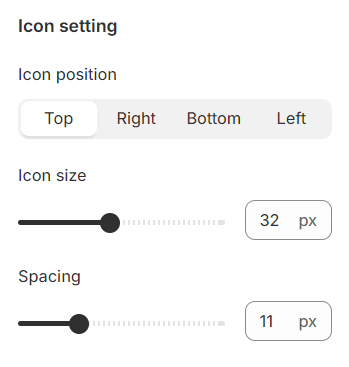
Icon position : Set the icon's position to top, right, bottom, or left.
Icon size : Specify the size of the icon.
Spacing : Adjust the spacing around the icon.
Content settings#
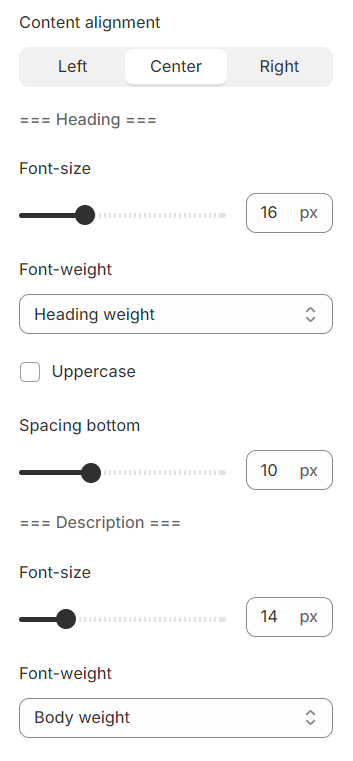
Content settings include customization options for headings and descriptions. You can adjust the Font size and Font weight for each of these text elements to match your design preferences.
Additionally, the Spacing between each element can be tailored, allowing for optimal readability and a visually appealing layout that enhances the overall user experience.
Mobile options and Section padding#
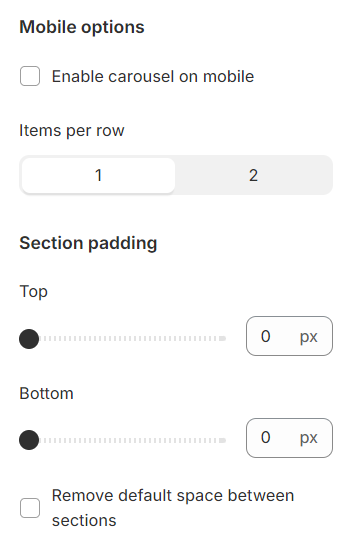
Items per row: In mobile view, the number of items displayed on each row in the grid layout can be customized to suit your preferences and the overall design of your site.
Section padding allows you to specify the space between this section and the preceding or following sections, or both.
Blocks settings#
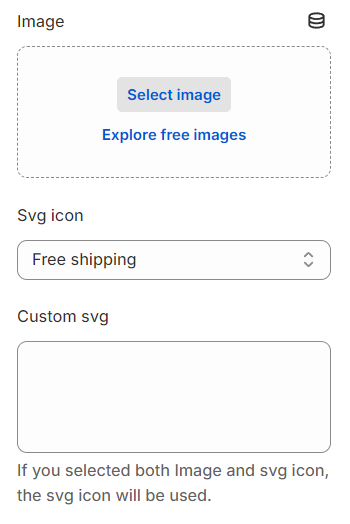
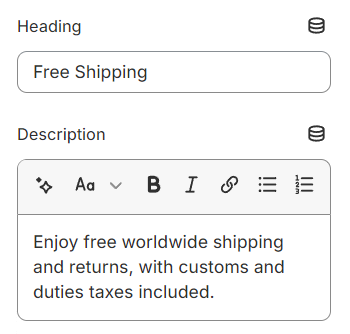
For each image box item, select an image, and specify a heading and description, allowing you to tailor the content and narrative for every individual element within the collection.
Last updated 1 year ago