Color
You can define different color schemes in your theme settings and apply the color schemes to different sections throughout your online store with a color scheme picker.
A color scheme is a set of colors. Your theme has a set of default color schemes applied that you can change at any time in the theme editor. You can add your brand colors to ensure a cohesive application of your color palette across your online store.
Please follow this link for more clearly about Color Scheme : https://help.shopify.com/en/manual/online-store/themes/theme-structure/color-scheme
To customize the color in our theme please follow the steps:
Steps
In the theme editor ( Customize ), click Theme settings
Locate Colors
Make necessary changes
Save
Please follow the document to change the colors on your store.
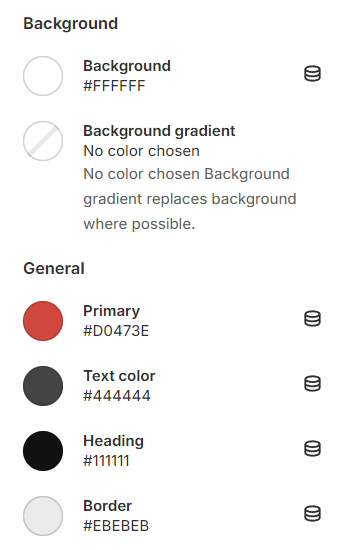
General color#
Site background : Your site background color
Primary : You can change the color when hover to Blog title, Add to cart button, Filter, Sort by,...
Text color : You can change the text color of your store.
Heading : You can change Heading of some sections like: Product form, Filter, Sidebar collection, Layout switch, ...
Link color : You can change color of the Links on your store.
Link color hover : You can change color when hover to the Links on your store.
Border color : Border color in your store.
Button color#
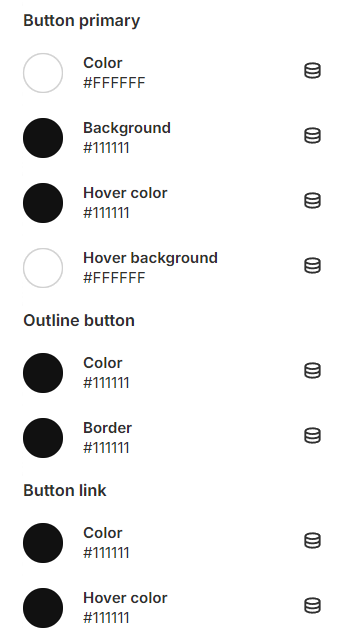
Change the background and text color for all call-to-action buttons and button hover.
Button primary: used for the most important or prominent action on your webpage (ex: "Submit" button on a form, "Buy Now" button on an e-commerce site, ...)
Outline button: used for actions that are less important or serve as alternatives to the primary action (ex: a "Cancel" or "Reset" button in a form, ...)
Button link: buttons are underlined as links instead of border
Last updated 1 year ago