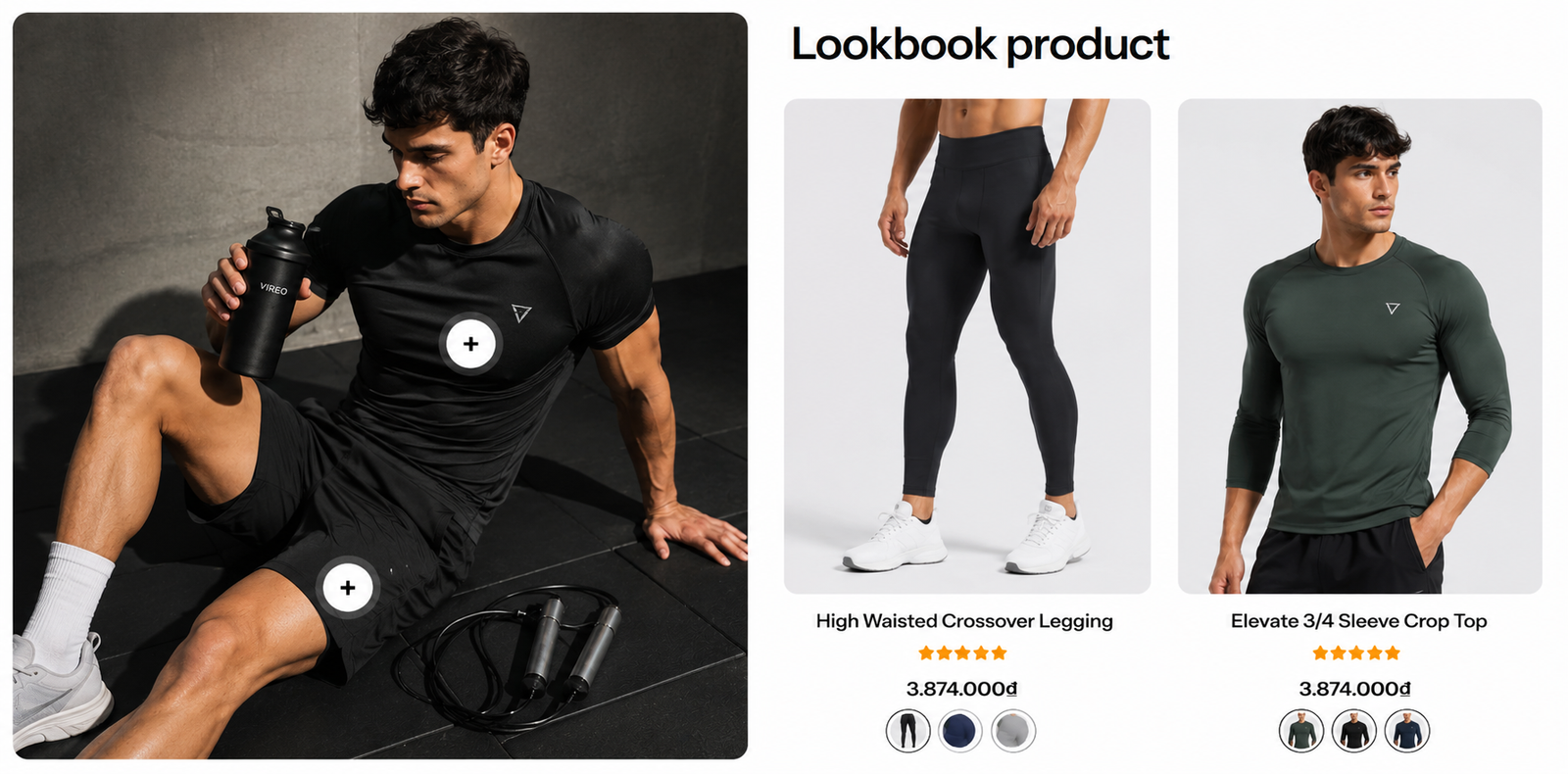
Lookbook product
Section settings#
General and Section header#
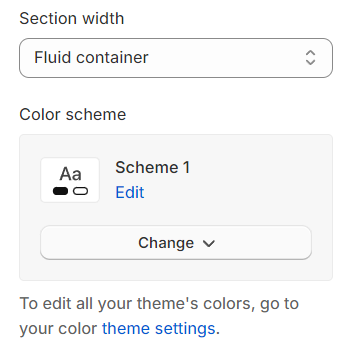
Section width: You can choose among Container, Wrapped container, Full width for the banner layout.
Color scheme: Set text color and background color with preset scheme
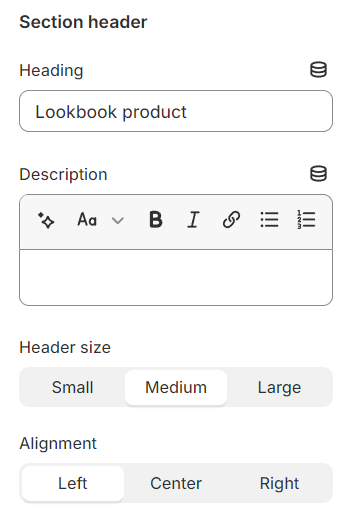
Use the provided text fields to add a suitable heading/description. Leave any of them blank if you do not want to display them.
Adjust the text alignment (left/center/right) along with the font size.
Lookbook image#
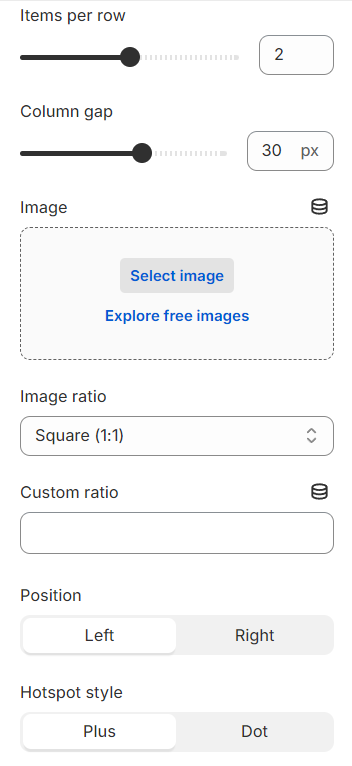
Items per row: This option lets you specify the number of products featured in each row, allowing for a customized layout.
Column gap: Adjust the spacing between two Instagram items to ensure a visually pleasing and well-organized layout within the Instagram block.
Image : Select an image to be displayed as the lookbook thumbnail image.
Image ratio : Select a preset ratio for the images.
Custom ratio : Define a custom ratio instead.
Position : Set the position of the image relative to the lookbook products.
Hotspot style : Choose between a dot or a plus sign for the hotspot indicator.
Carousel settings#
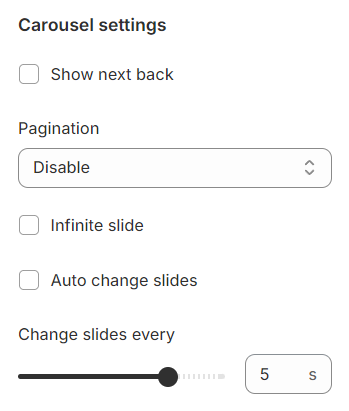
Show Next/Back: Display arrows to navigate to the next or previous item.
Pagination: Choose from different types of pagination options.
Setup period time: Configure the time interval for changing slides.
Mobile options and Section padding#
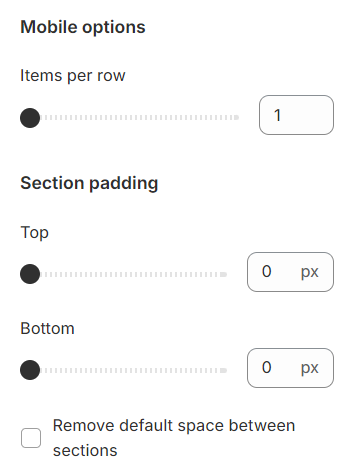
Items per row: In mobile view, the number of items displayed on each row in the grid layout can be customized to suit your preferences and the overall design of your site.
Section padding allows you to specify the space between this section and the preceding or following sections, or both.
Block settings#
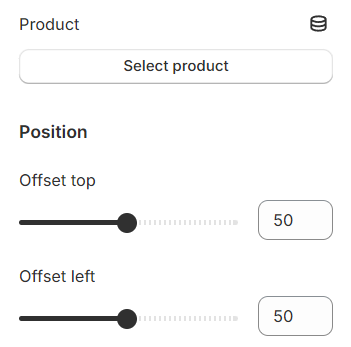
You can configure lookbook product to display, each marked by a plus sign. The position of these signs can be adjusted to precisely indicate where each product is featured within the lookbook image.
Last updated 1 year ago