Collection overview
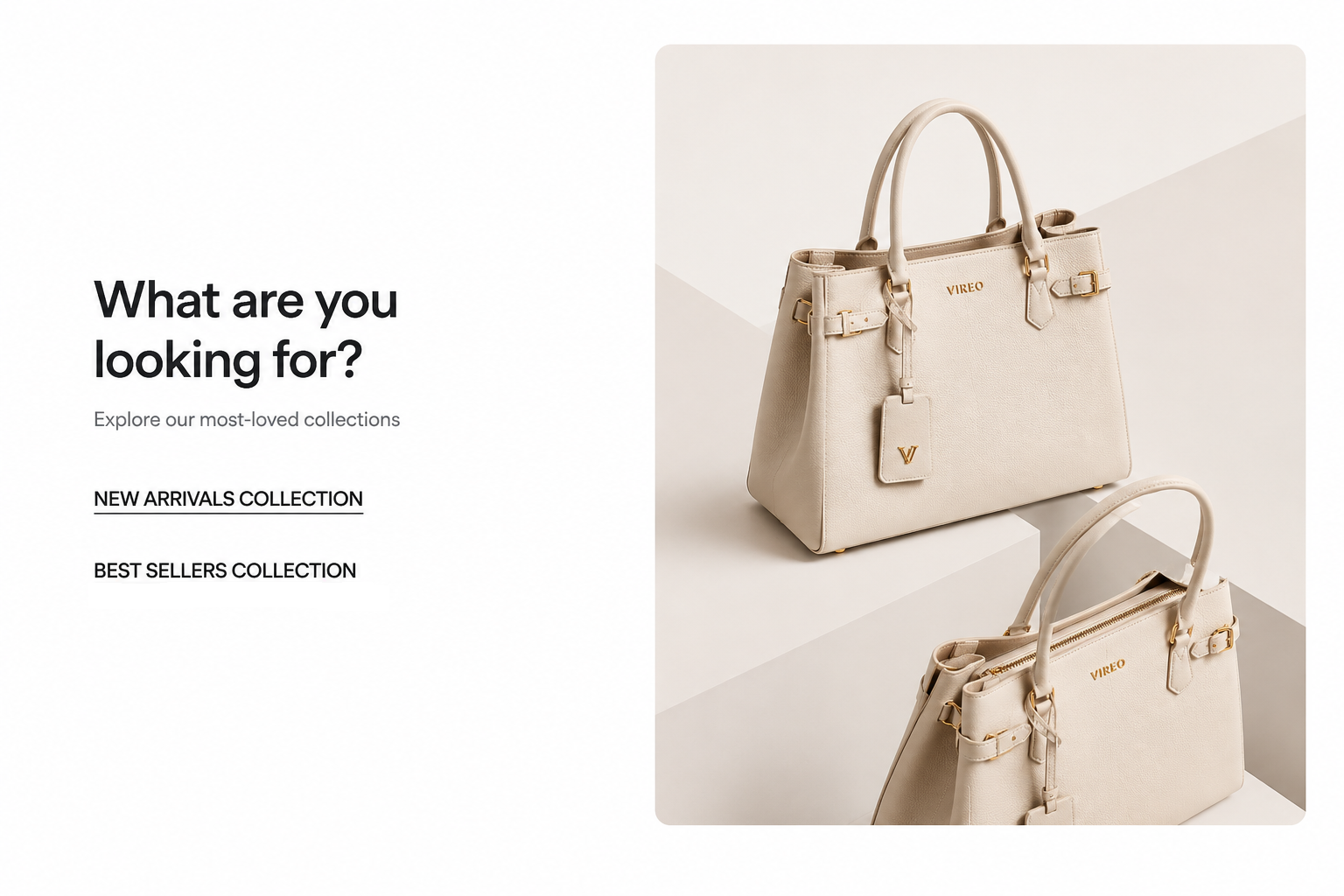
Steps
In the theme editor ( Customize ), click Add section
Locate Collection packery
Save
Section settings#
Section header and General#
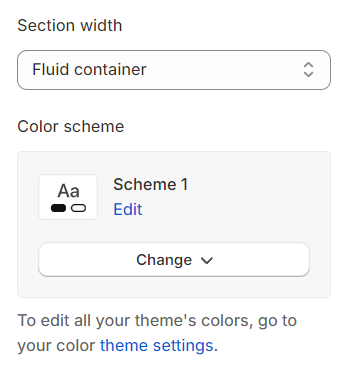
Section width: You can choose among Container, Wrapped container, Full width for the banner layout.
Color scheme: Set text color and background color with preset scheme
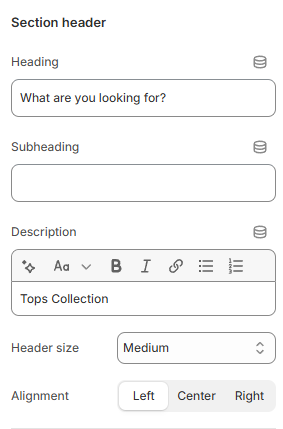
Use the provided text fields to add a suitable heading/subheading/description. Leave any of them blank if you do not want to display them.
Adjust the text alignment (left/center/right) along with the background color and container type.
Collection settings#
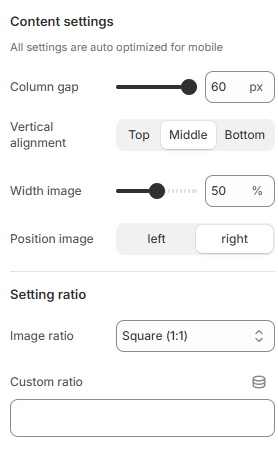
Image ratio: You can set the ratio for images with presets or set up your own ratio with Custom ratio
Column gap: You are allowed to change both of them for mobile devices.
Vertical alignment : You can set the alignment for the content.
Width image : Set the width of the image to control its size and fit within the layout.
Position image: Choose the position of the image, either on the left or right, to align with your layout preferences.
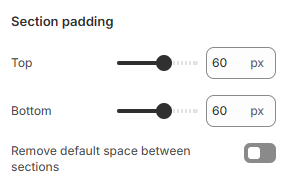
Section padding#
Section padding allows you to specify the space between this section and the preceding or following sections, or both.
Block setting#
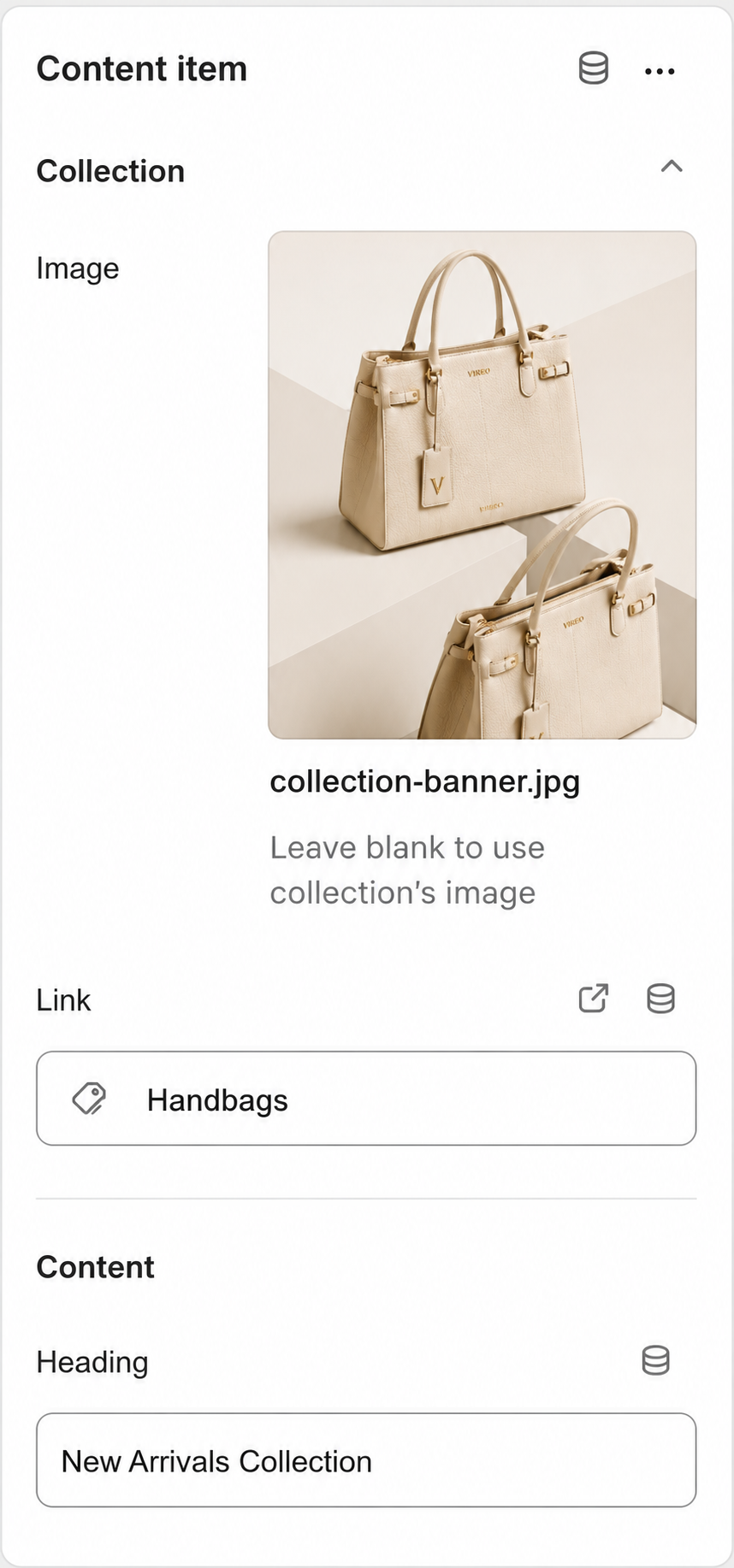
Choose the image and the link that leads to the desired collection, providing a direct pathway for users to explore specific products or categories.
Content heading: Set the title for the collection section to clearly display its purpose and content.
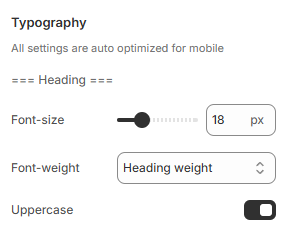
Typography:
Customize the heading style by adjusting the font size, font weight, and enabling uppercase formatting (True/False) for a consistent design.
Last updated 1 year ago