Image comparison slider
Image comparison slider shows 2 images next to each other which let customers see the differences between them.
You can setup 2 individual pairs of images for mobile and desktop.
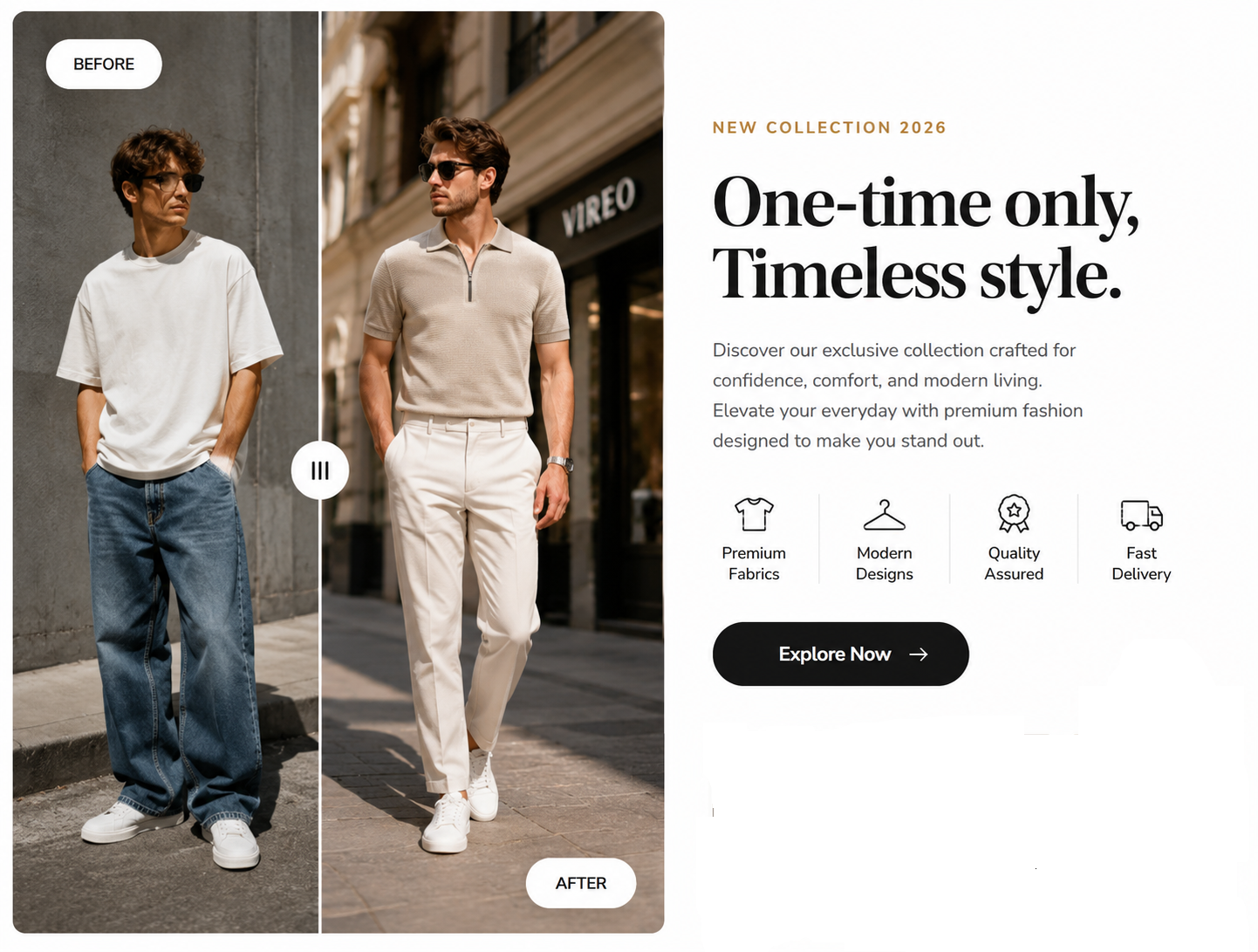
Steps:
In your Shopify admin, go to Online Store ==> Themes .
Click Customize .
Locate Image comparison slider .
Change images.
Click Save .
Section settings#
Section header and General#
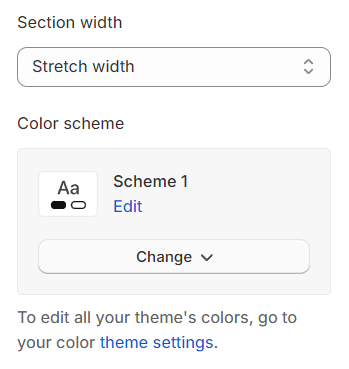
Section width: You can choose among Container, Wrapped container, Full width for the banner layout.
Color scheme: Set text color and background color with preset scheme
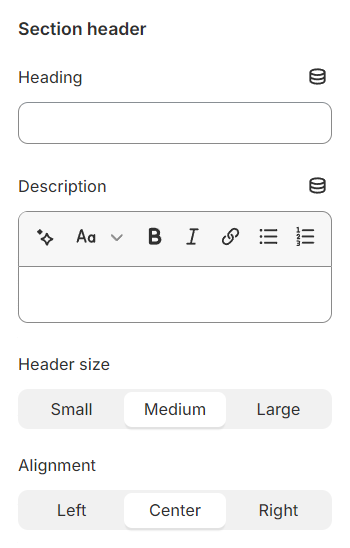
Use the provided text fields to add a suitable heading/description. Leave any of them blank if you do not want to display them.
Adjust the text alignment (left/center/right) along with the background color and container type.
Before/After image#
Before/After Image : Configure the display to show a before and an after image.
Width image: Adjust the width of the slider to fit the visual layout and content requirements of your webpage or presentation.
Position : Choose to place the content on the left or right side.
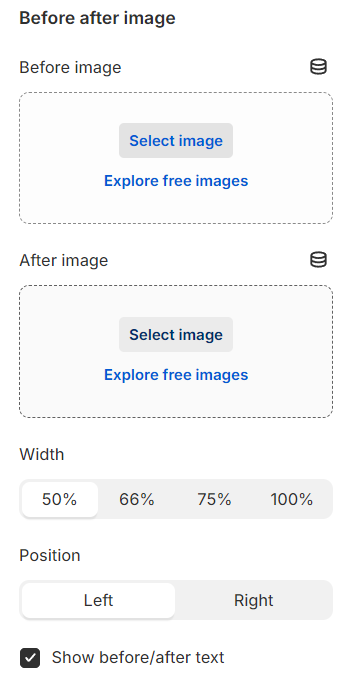
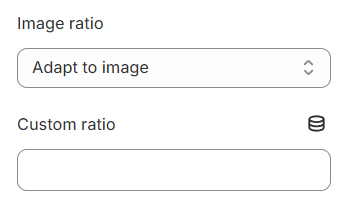
Image ratio : Select a preset ratio for the images.
Custom ratio : Define a custom ratio instead.
Content settings#
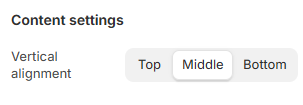
Vertical alignment: Adjust the vertical alignment of content to position it at the top, center, or bottom within its container.
Section padding#
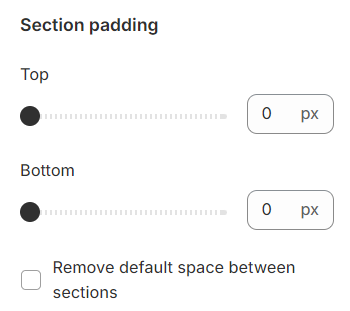
Section padding allows you to specify the space between this section and the preceding or following sections, or both.
Block settings#
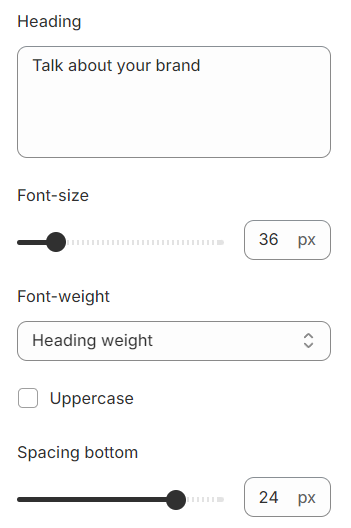
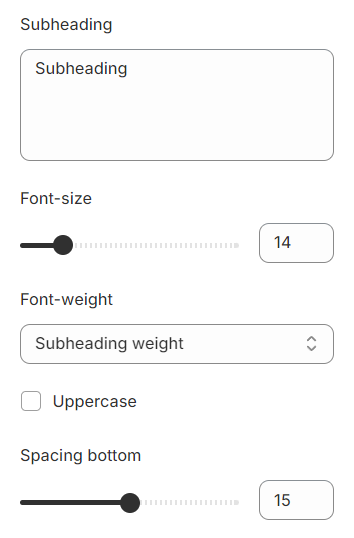
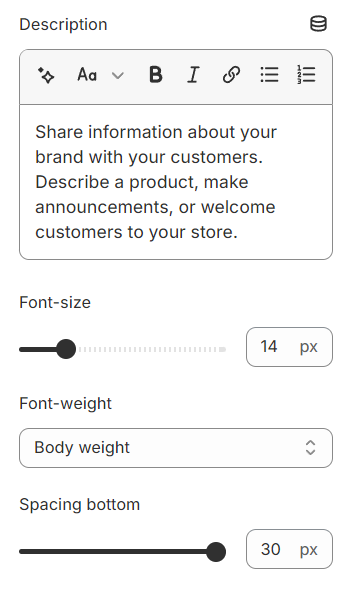
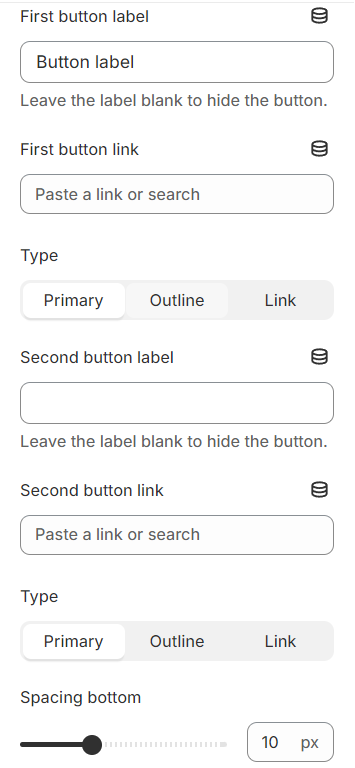
Each block includes settings for content such as font size, font weight, text transformation, and spacing.
Heading#
Subheading#
Description#
Button#
Last updated 1 year ago