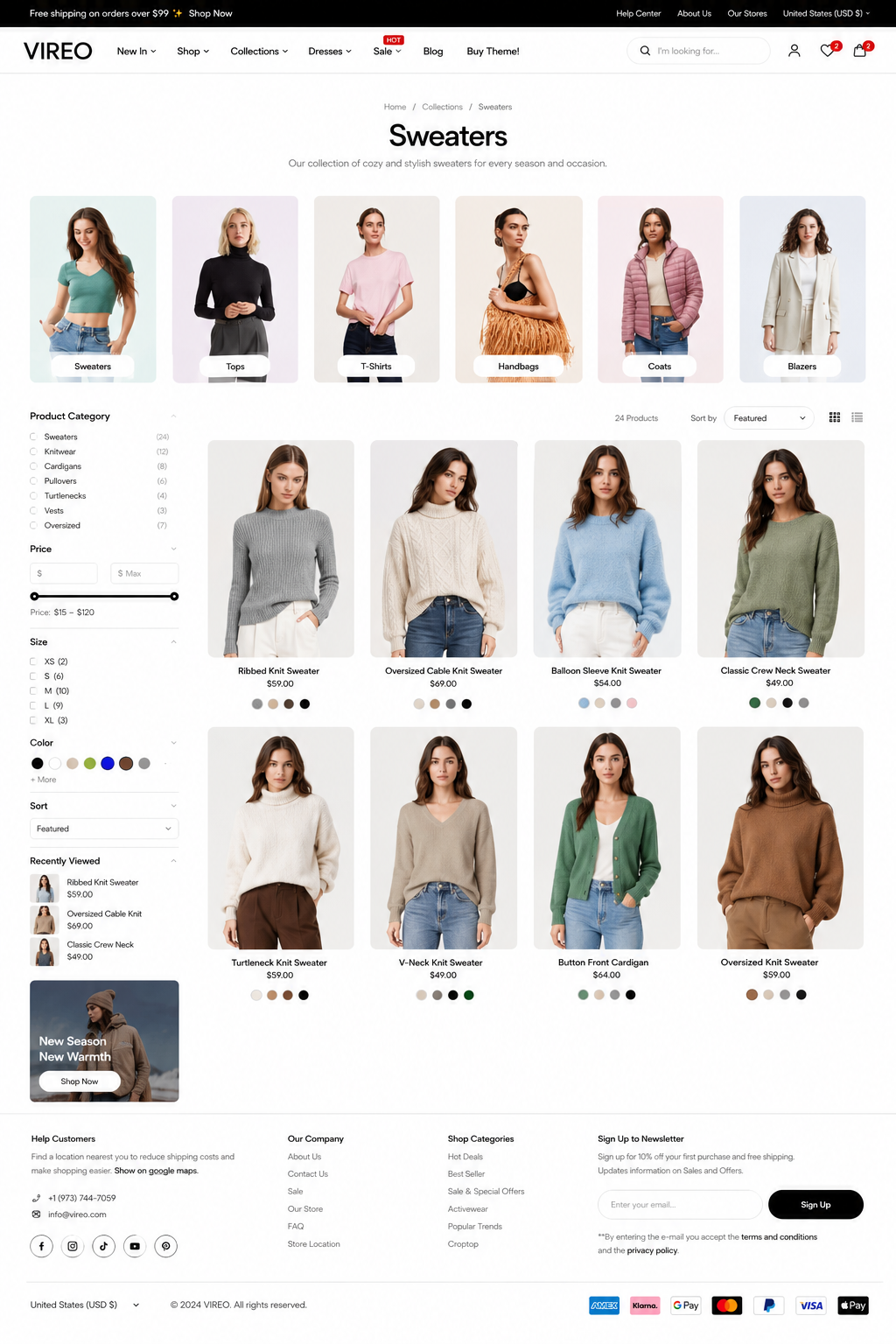
Collection page
Section settings#
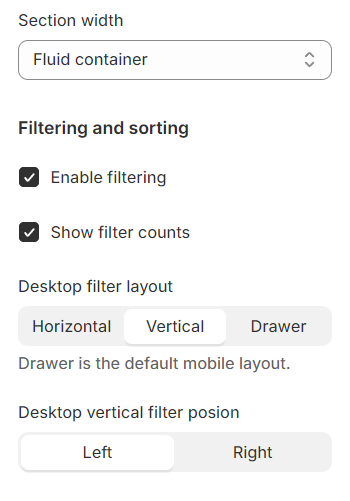
Filtering and sorting#
Section width: You can choose among Fluid container, Full width, Stretch width for the banner layout.
Enable filtering : Activate the filter feature to allow users to refine their search.
Show filter counts : Display the number of items available in each filter category.
Desktop filter layout : Choose from three different filter layouts available for desktop.
Desktop vertical filter position : Select either a left or right sidebar for the filter on desktop views.
Toolbar settings#
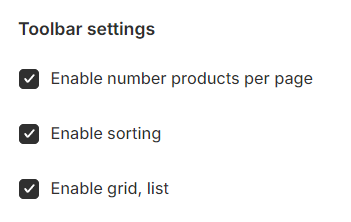
Enable number products per page : Activate this feature to display an announcement regarding the number of products shown per page.
Enable sorting : Allow users to access sorting options to organize products according to their preferences.
Enable grid, list : Provide layout options, enabling users to choose between grid or list views for displaying products.
Product grid#
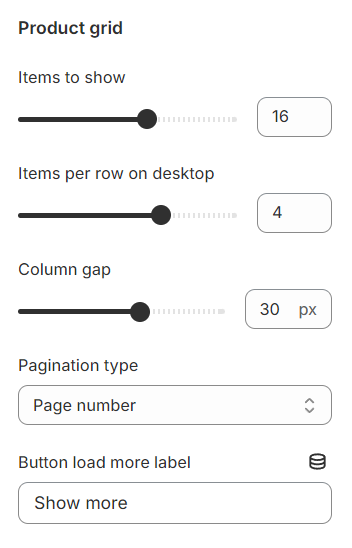
Items to show : Set a limit on the total number of products displayed.
Items per row on desktop : Specify the number of products per row for desktop views.
Column gap : Adjust the spacing between items in a row.
Pagination type : Choose from three pagination options: page number, load more button, or infinite scroll.
Button load more label : Customize the label on the 'load more' button.
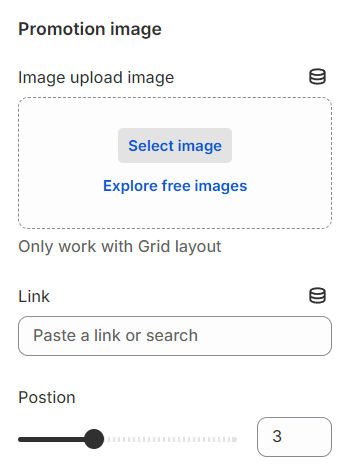
Promotion image#
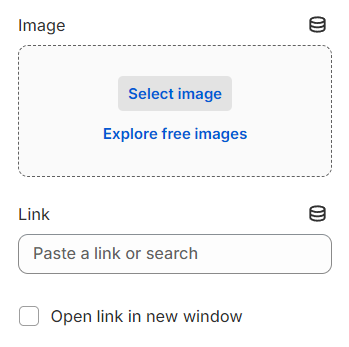
Upload image : Select an image to display for promotional purposes.
Link : Set a link for the promotion image to direct users to the relevant page.
Position:
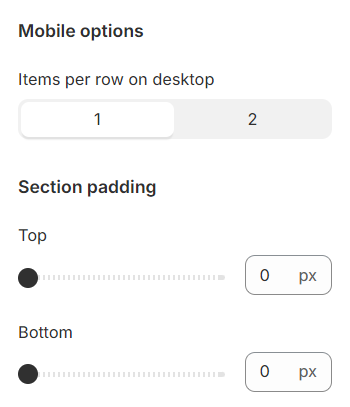
Mobile options and Section padding#
Items per row: In mobile view, the number of items displayed on each row in the grid layout can be customized to suit your preferences and the overall design of your site.
Section padding allows you to specify the space between this section and the preceding or following sections, or both.
Block settings#
These customizable blocks allow you to tailor your storefront to best showcase your products and engage customers effectively. Here’s a brief overview of each block you can utilize:
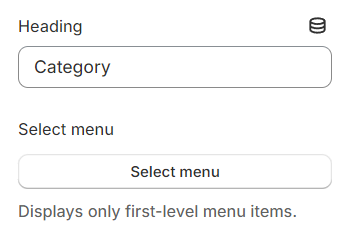
Categories#
Organize your products into clear, navigable categories that make it easy for customers to browse and find exactly what they're looking for. This block helps in creating a structured, user-friendly shopping experience.
Filters#
Enhance user experience by allowing customers to refine product selections based on their preferences such as size, color, price, and other attributes. This block is essential for stores with a large inventory, helping customers zero in on the products that meet their needs without unnecessary scrolling.
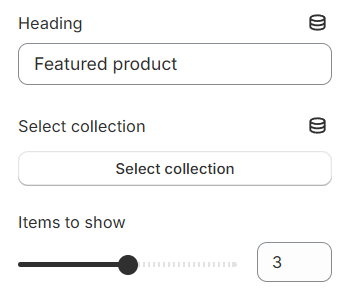
Featured products#
Highlight specific products to draw attention to new arrivals, bestsellers, or promotional items. This block is perfect for driving sales of targeted products and can be updated regularly to keep your homepage fresh and engaging.
Banner image#
Capture the essence of your brand and engage visitors immediately with a large, eye-catching banner image. This block is perfect for promoting current specials, upcoming events, or conveying your brand’s story. Easily updateable, it allows for seasonal refreshes and campaign alignments.
Custom HTML#
This versatile block adds a layer of customization to your Shopify store, allowing you to insert your own HTML, CSS, and JavaScript directly into your site. Perfect for merchants who want to integrate custom widgets, unique design elements, or third-party applications that aren't supported natively by Shopify. Whether you need to embed a video, create a special layout, or add interactive elements, the Custom HTML Block gives you the freedom to truly personalize your store and enhance your brand's digital presence.
Last updated 1 year ago