Product bundle
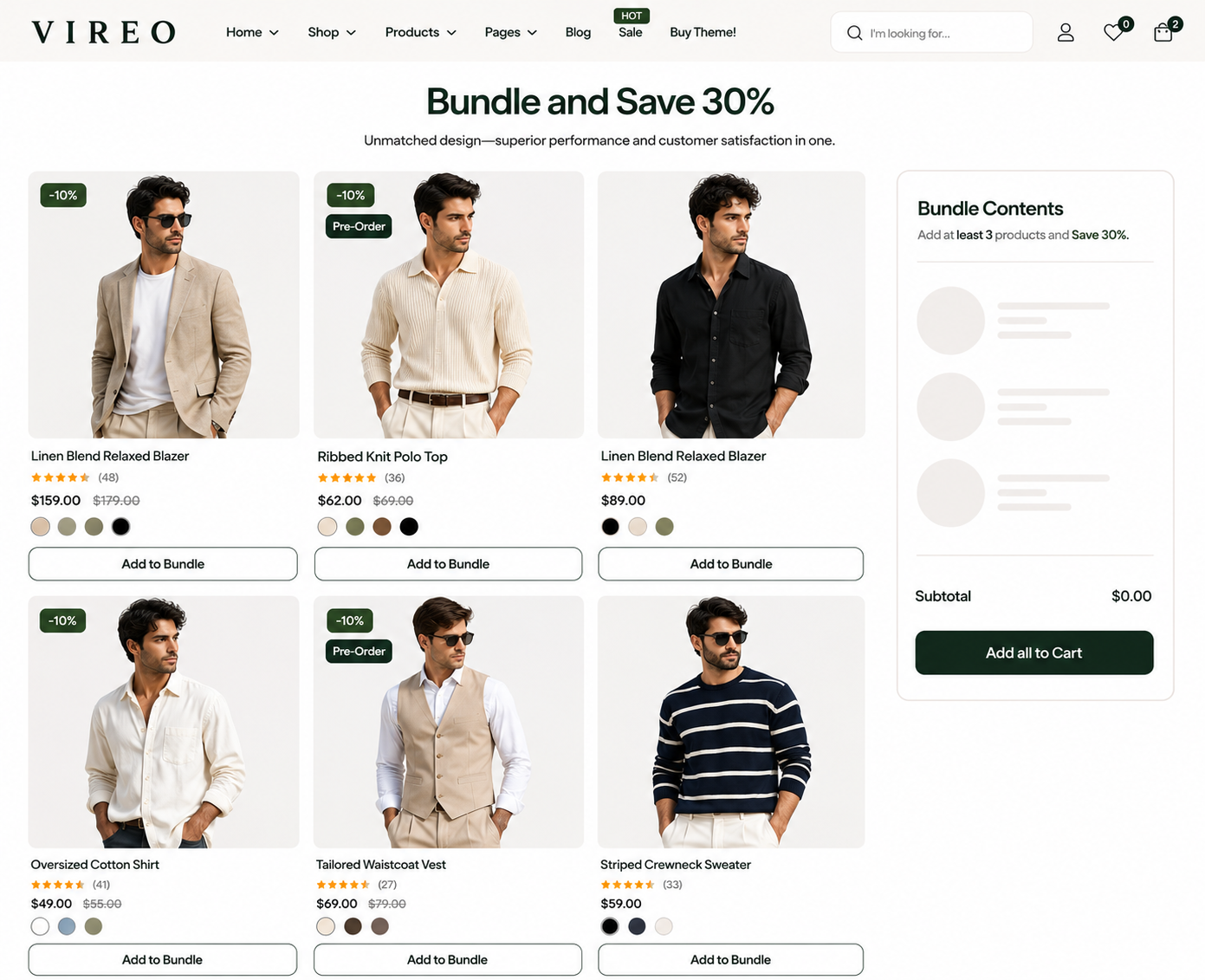
Steps
In the theme editor ( Customize ), click Add section
Locate Product bundle
Save
Section settings#
General:#
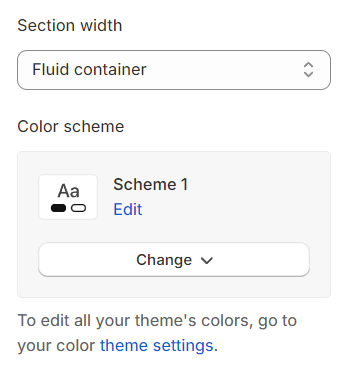
Section width: You can choose among Container, Wrapped container, Full width for the banner layout.
Color scheme: Set text color and background color with preset scheme
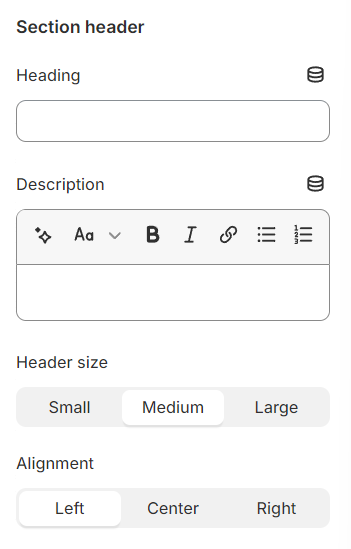
Use the provided text fields to add a suitable heading/subheading/description. Leave any of them blank if you do not want to display them.
Adjust the text alignment (left/center/right) along with the background color and container type.
Discount:#
Important Note: - This section will be used to display the products, collections that are set up for discounts according to the types of discounts available in Shopify - You can learn how to set up discounts here
Minimum items in bundle: limit the minimum number of products that need to be added to a bundle
Maximum items in bundle: limit the maximum number of products added to a bundle
Enable edit the quantity of products in the bundle: allows editing of quantity in bundle cart
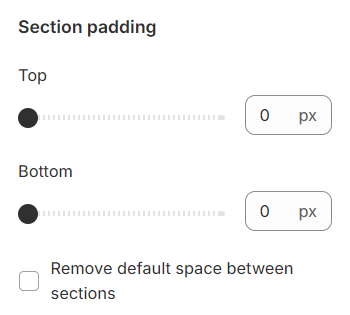
Section padding#
Section padding allows you to specify the space between this section and the preceding or following sections, or both.
Blocks settings#
Product discounts#
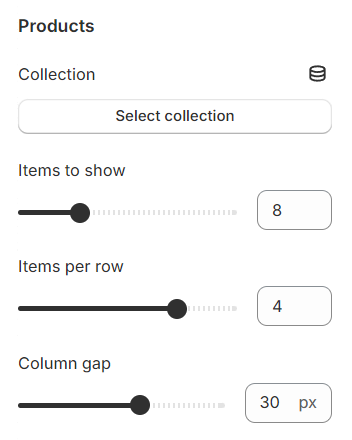
Collection: Choose by collection set up discounts
Products: Choose by products that are set up for discounts
Specify the quantity of products to display, the number of products per row, and the gap between two adjacent products
Bundle Contents#
| Setting | Description |
|---|---|
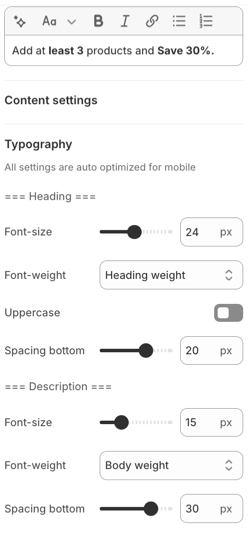
Heading | Heading content |
Description | Description content |
Typography | Customize font size, heading, and description |
Last updated 1 year ago