Slideshow
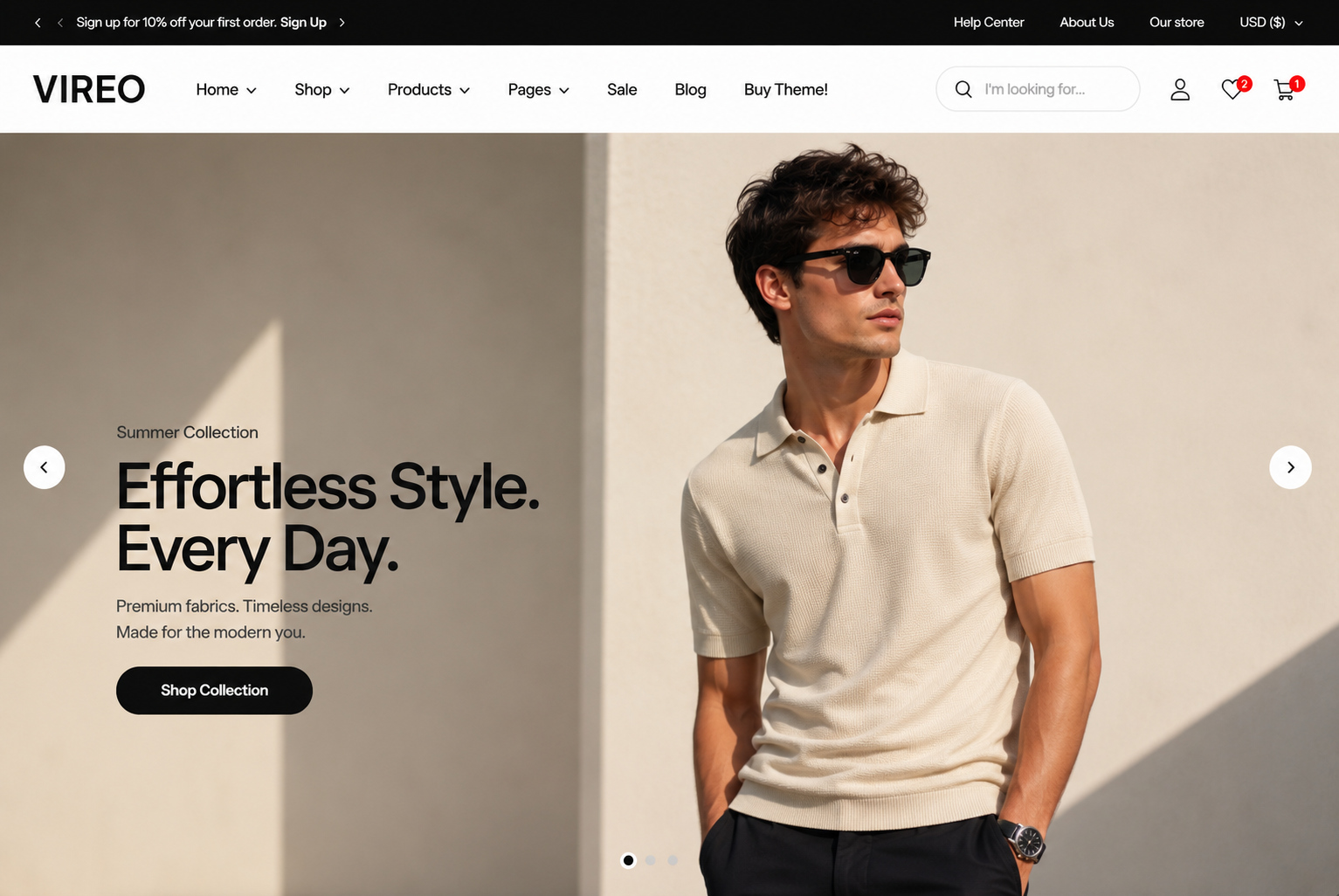
A slideshow is a quick and interactive way to showcase content and information on your site. Slideshow lets you display your most popular products/collections or shout out about what's new with a call-to-action button.
Steps
In the theme editor ( Customize ), click Add section
Locate Slideshow
Save
Section settings#
General setting#
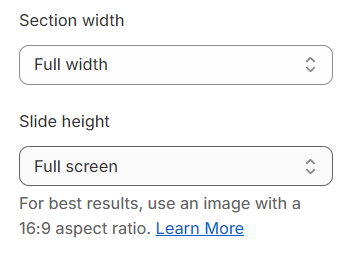
Section width: You can choose among Fluid container, Stretch width, Full width for the layout or just leave it with the default layout of the video.
Slide height: The image height can be configured to fit the full screen, maintain its original height, or be adjusted to a custom height.
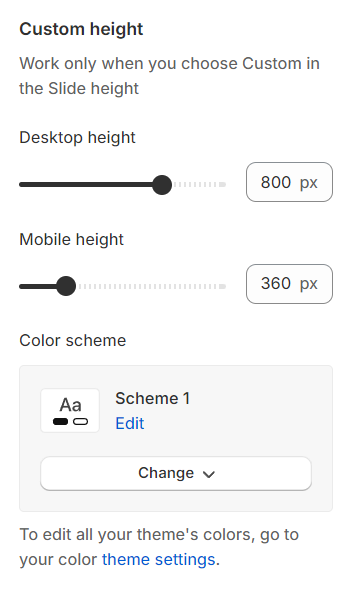
Custom height#
Setting the slide height to custom allows you to personally configure the height of the slide according to your specific requirements, offering complete control over the slide's appearance.
Color scheme: Set text color and background color with preset scheme
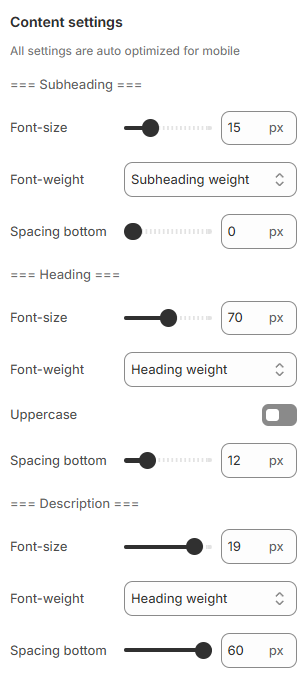
Content settings#
Adjust the font size, font weight, and bottom spacing for content parts, including subheadings, headings, and descriptions, to match your design preferences.
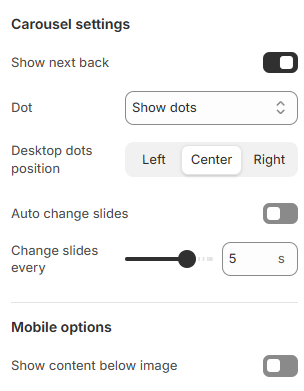
Carousel settings#
Show Next/Back: Display arrows to navigate to the next or previous item.
Dot: Choose from different types of pagination options.
Desktop dots position: Set the position of navigation dots on desktop view to left, center, or right for better alignment with your layout.
Change slide every: Configure the time interval for changing slides.
Reveal next slide: Allow a part of the next slide to be visible while the previous one is still displayed.
Show content below image: Enable this option to display content, such as headings or descriptions, below the image on mobile devices for a more compact and organized layout.
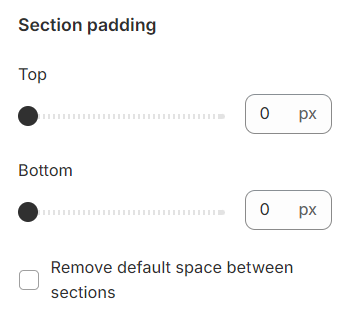
Section padding:#
Section padding allows you to specify the space between this section and the preceding or following sections, or both.
Blocks settings#
Image settings#
You can add images for desktop and mobile versions separately.
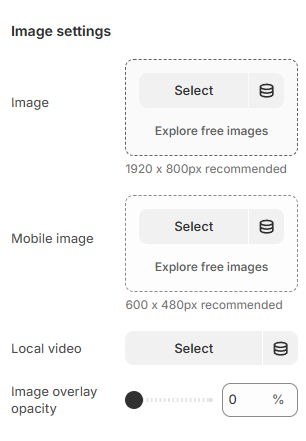
1920x900px is recommended for desktop and 600x480px is recommended for mobile.
Local video: Enable this option to assign a specific video to each slide, enhancing visual engagement and interactivity.
Add focal point: This feature helps you select the most important part of an image for your store. It ensures that the focal points of the image always remain visible, even if a section crops the image to fit the layout.
Please follow this link for more information.
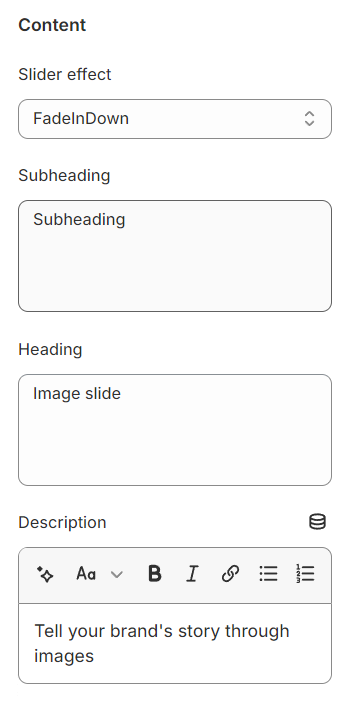
Content#
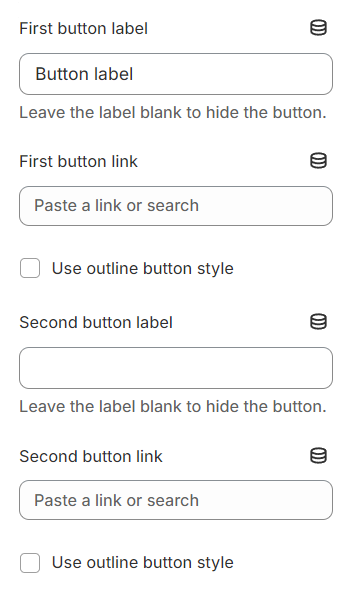
Use the provided text fields to add a suitable heading/subheading/description. Leave any of them blank if you do not want to display them.
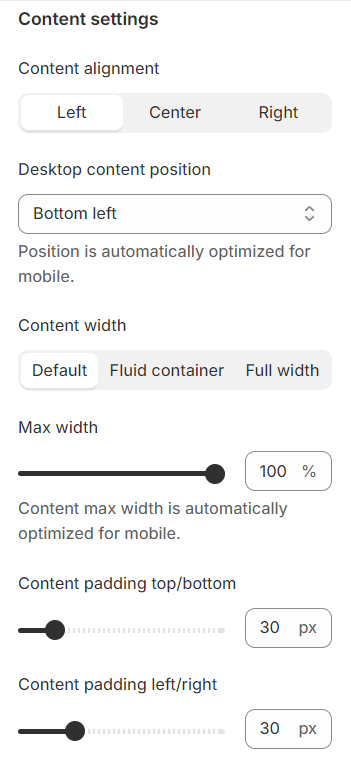
Content settings#
Content alignment: Options to align text left, center, or right are available.
Desktop content position: Vertically and horizontally align the content for optimal positioning.
Content padding : Configure the padding for the content box.
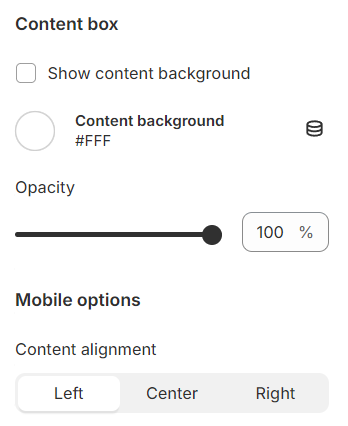
Content box and Mobile options#
You can set a background color and adjust the opacity for the it.
Content alignment: Options to align text left, center, or right are available on mobile.
Last updated 1 year ago