Password
Steps
In the theme editor (Customize) , open the template selector
Select Others , then Password.
Make necessary changes
Save
Section settings#
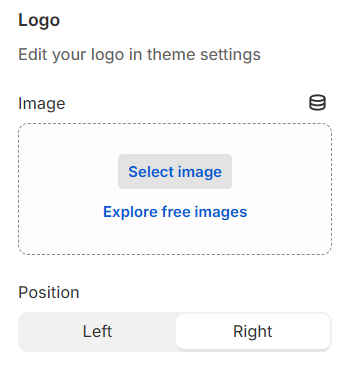
Logo#
Select a logo and its position (left or right) for the password page here.
Content settings#
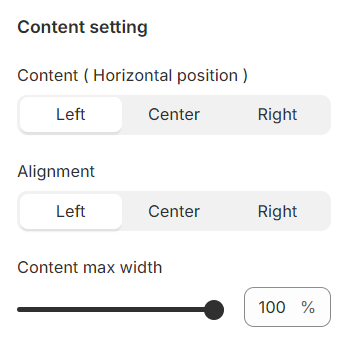
Content position: Adjust the placement of your content either vertically or horizontally to best fit the design and flow of your page.
Alignment: Customize the alignment of your text within the content area, with options such as left, center, or right, to enhance readability and aesthetic appeal.
Content max width: Define the maximum width for your content, ensuring it remains within a visually appealing and readable format.
Block settings#
Heading#
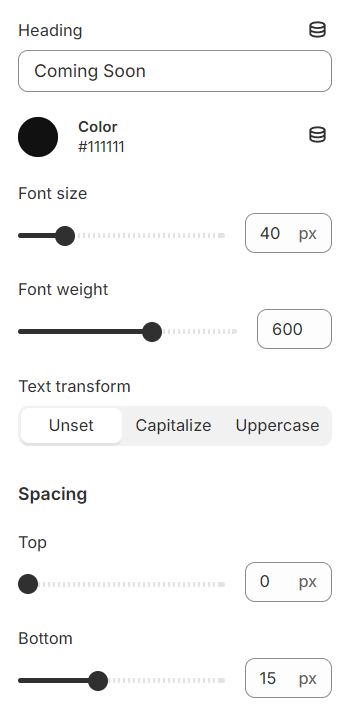
Use the provided text fields to add a suitable heading. Leave it blank if you do not want to display.
Adjust the text color along with the font and transformation.
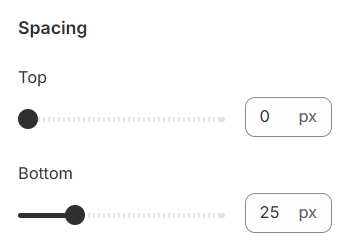
Spacing allows you to specify the space between this block and the preceding or following blocks, or both.
Subheading#
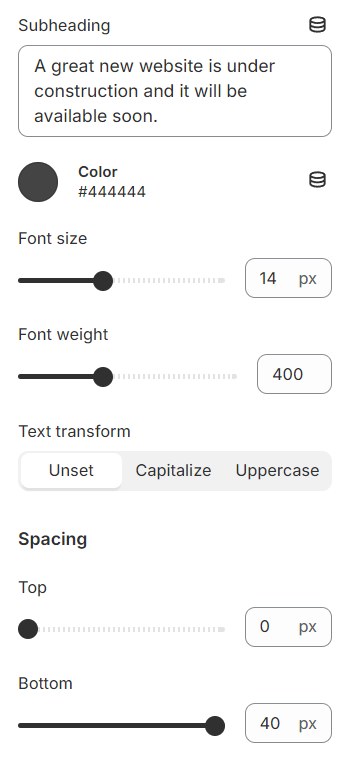
Use the provided text fields to add a suitable subheading. Leave it blank if you do not want to display. Adjust the text color along with the font and transformation.
Spacing allows you to specify the space between this block and the preceding or following blocks, or both.
Countdown#
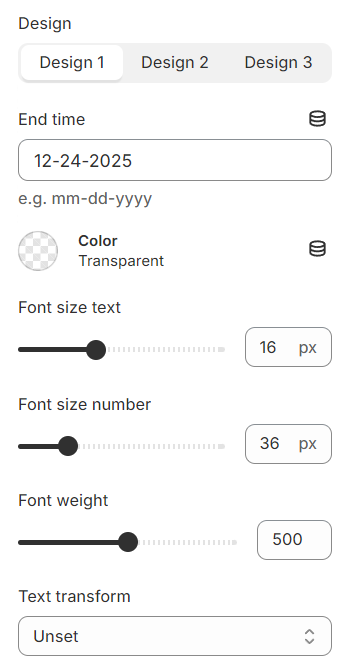
You have the option to configure the countdown timer by setting a specific end time directly here. Additionally, you can customize the appearance of the timer block by selecting from various design options, ensuring that it aligns with the overall aesthetic of your page. This allows for a personalized and engaging user experience.
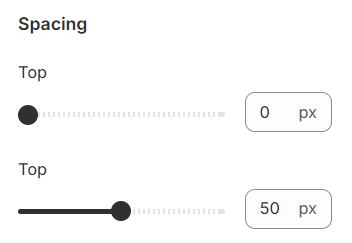
Spacing allows you to specify the space between this block and the preceding or following blocks, or both.
Form subcribe#
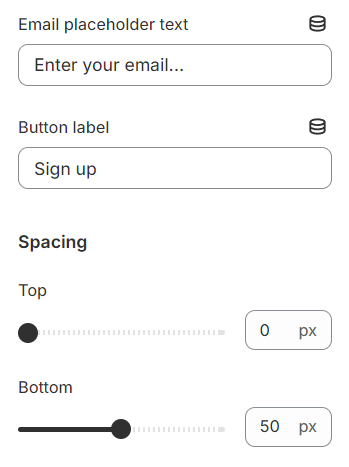
Here, you have the flexibility to customize the email input field by entering a placeholder text that guides users on what information is required. Additionally, you can define the label for the submission button, tailoring it to better match the action you want users to take.
Spacing allows you to specify the space between this block and the preceding or following blocks, or both.
Text#
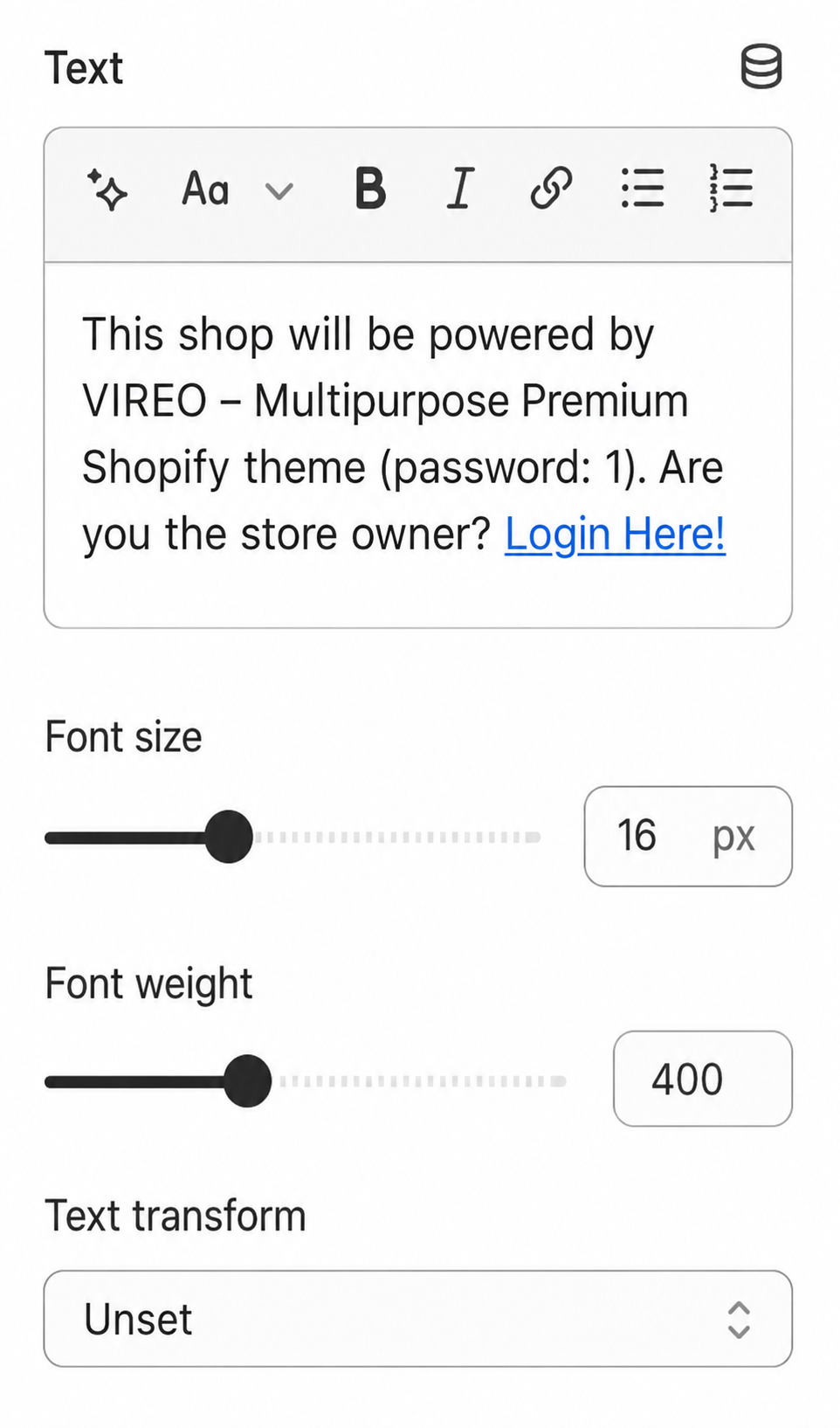
Utilize the text fields provided to input your desired content. If you prefer not to display any content, simply leave the fields blank. Additionally, you have the option to customize the text size and font weight according to your preferences right here. This allows for enhanced control over the appearance and readability of your text on the page.
Spacing allows you to specify the space between this block and the preceding or following blocks, or both.
Password footer#
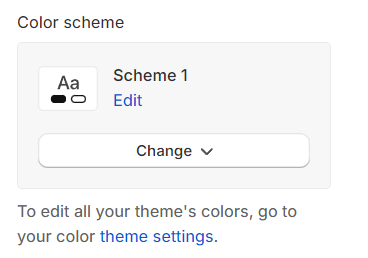
Color scheme: Set text color and background color with preset scheme
Last updated 1 year ago